
Mobile Device Security Mistakes That Expose Your Data
Most mobile security failures stem from configuration errors rather than software vulnerabilities, leaving devices open to silent data theft.
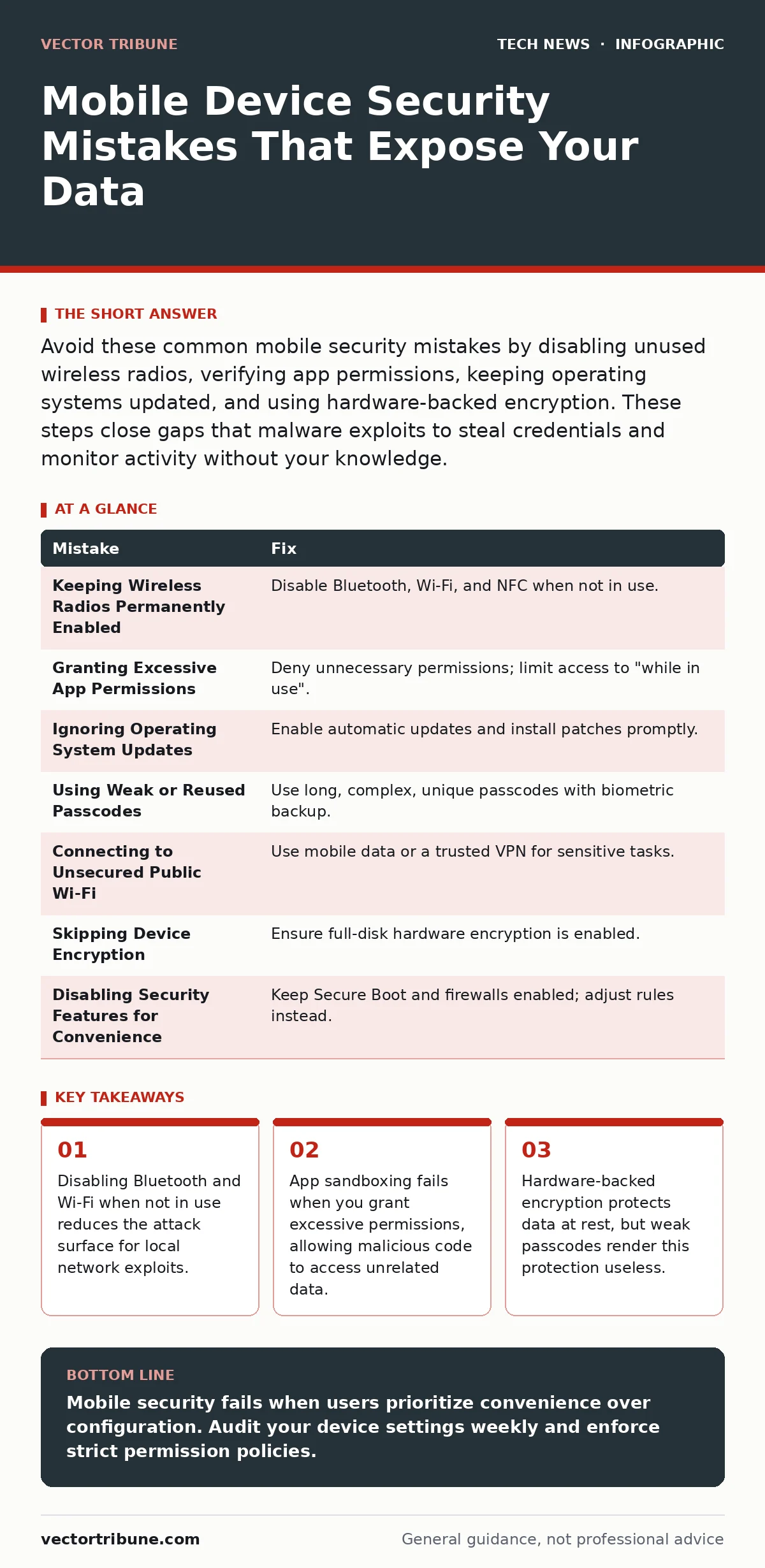
Avoid these common mobile security mistakes by disabling unused wireless radios, verifying app permissions, keeping operating systems updated, and using hardware-backed encryption. These steps close gaps that malware exploits to steal credentials and monitor activity without your knowledge.
Mobile devices store sensitive credentials, financial records, and personal communications. They operate in untrusted environments, connecting to public networks and interacting with unknown hardware. Security on these devices relies on layered defenses. When one layer fails, attackers exploit the gap. You must understand the specific mechanics of these failures to prevent data loss.
Mistake 1: Keeping Wireless Radios Permanently Enabled
Why it hurts:
Bluetooth, Wi-Fi, and Near Field Communication (NFC) radios broadcast your device’s presence. Even when not actively transferring data, these radios listen for signals. Attackers use this constant broadcast to identify device types, operating system versions, and installed apps. This information helps them craft targeted exploits. Imagine an attacker scanning a crowded train station for devices with known vulnerabilities. They can attempt connections automatically. This exposure occurs regardless of whether you are using the device.
The fix:
Disable wireless radios when you do not need them. Use the quick settings panel to toggle Bluetooth and Wi-Fi off. Many modern devices allow you to set schedules for these radios. Turn off NFC when not making payments. This reduces your digital footprint. It forces attackers to work harder to find and target your device.
Mistake 2: Granting Excessive App Permissions
Why it hurts:
Apps request permissions to access hardware and data. A flashlight app does not need access to your contacts or location. When you grant unnecessary permissions, you break the principle of least privilege. This principle states that software should only have the access it needs to function. Malicious apps use this access to harvest data silently. They can track your movements, read your messages, or monitor your microphone. The damage occurs in the background, often without any visible notification.
The fix:
Review app permissions regularly. Deny any request that does not align with the app’s core function. If a game asks for access to your photos, decline it. Many operating systems allow you to limit permissions further. You can grant access to photos only when the app is in use. This prevents background scanning of your gallery. Check these settings after every major app update.
Mistake 3: Ignoring Operating System Updates
Why it hurts:
Operating system updates patch known security vulnerabilities. Developers discover flaws in the code and release fixes. If you delay updates, your device remains vulnerable to exploits that are already public. Attackers use automated tools to scan for devices running outdated software. They exploit these known weaknesses to gain control. This is not theoretical. Many ransomware campaigns target unpatched devices specifically. The delay between release and installation is your window of exposure.
The fix:
Enable automatic updates for your operating system. Ensure you have a stable internet connection and sufficient battery charge before installing. If automatic updates are disabled, schedule a regular time to check for them manually. Do not ignore prompts to restart the device. Some security patches only take effect after a reboot. This simple habit closes the most common entry points for malware.
For deeper context on how software flaws are identified and patched, see our guide on secure software development.
Mistake 4: Using Weak or Reused Passcodes
Why it hurts:
Your passcode protects the encryption key that secures your data. Modern devices use hardware-backed encryption. This means your data is scrambled using a key stored in a secure chip. The passcode is required to unlock this key. A simple four-digit code can be guessed in minutes. Attackers use brute-force tools that try thousands of combinations rapidly. If you reuse the same passcode across multiple devices, compromising one device compromises all of them. The encryption is strong, but the key is weak.
The fix:
Use a long alphanumeric passcode instead of a simple number. Include letters, numbers, and symbols if your device supports it. This increases the complexity and makes guessing impossible. Enable biometric authentication as a secondary layer. Biometrics are convenient, but the passcode is the ultimate fallback. Ensure your passcode is unique to this device. Do not write it down or store it in an unencrypted note.
Mistake 5: Connecting to Unsecured Public Wi-Fi
Why it hurts:
Public Wi-Fi networks often lack encryption. Data sent over these networks travels in plain text. Attackers on the same network can intercept this traffic. They can steal login credentials, read emails, and monitor web activity. This is known as a man-in-the-middle attack. The attacker sits between you and the destination server. They can modify the data you send or receive. Even if the website uses HTTPS, attackers can use certificate spoofing to trick your device into trusting them.
The fix:
Avoid performing sensitive tasks on public Wi-Fi. Use mobile data instead. If you must use public Wi-Fi, enable a Virtual Private Network (VPN). A VPN encrypts your traffic before it leaves your device. This hides your data from anyone on the local network. Ensure your VPN is from a trusted provider. Free VPNs often log your data or inject ads. For more on securing network traffic, refer to our guide on HTTPS.
Mistake 6: Skipping Device Encryption
Why it hurts:
If your device is lost or stolen, physical access gives attackers direct control. Without encryption, they can remove the storage chip and read the data. Encryption scrambles this data, making it unreadable without the key. Many devices have encryption enabled by default, but some do not. If encryption is off, your data is exposed. This is a critical failure in the device’s security posture. Attackers do not need to hack the software; they just need the hardware.
The fix:
Verify that full-disk encryption is enabled. This setting is usually found in the security or privacy section of your settings. Ensure it is active before storing sensitive data. If your device is old and does not support hardware encryption, consider replacing it. Software-based encryption can slow down the device and drain the battery. Hardware encryption is faster and more secure. This step is vital for protecting data at rest.
Mistake 7: Disabling Security Features for Convenience
Why it hurts:
Users often disable features like Secure Boot or firewall rules to speed up boot times or allow specific software. Secure Boot ensures that only trusted software runs during startup. Disabling it allows malware to load before the operating system starts. Firewall rules block unauthorized incoming connections. Turning them off exposes your device to network scans and attacks. This trade-off favors convenience over security. The result is a device that is easy to use but easy to compromise.
The fix:
Keep security features enabled. If a feature causes performance issues, investigate the root cause. Do not disable the protection as a workaround. For example, if an app is blocked by the firewall, update the firewall rules to allow only the necessary traffic. Do not turn off the firewall entirely. This approach maintains security while addressing usability concerns. See our guide on firewall rules for detailed configuration advice.
Summary of Fixes
| Mistake | Fix |
|---|---|
| Keeping Wireless Radios Permanently Enabled | Disable Bluetooth, Wi-Fi, and NFC when not in use. |
| Granting Excessive App Permissions | Deny unnecessary permissions; limit access to "while in use". |
| Ignoring Operating System Updates | Enable automatic updates and install patches promptly. |
| Using Weak or Reused Passcodes | Use long, complex, unique passcodes with biometric backup. |
| Connecting to Unsecured Public Wi-Fi | Use mobile data or a trusted VPN for sensitive tasks. |
| Skipping Device Encryption | Ensure full-disk hardware encryption is enabled. |
| Disabling Security Features for Convenience | Keep Secure Boot and firewalls enabled; adjust rules instead. |
Key takeaways
- Disabling Bluetooth and Wi-Fi when not in use reduces the attack surface for local network exploits.
- App sandboxing fails when you grant excessive permissions, allowing malicious code to access unrelated data.
- Hardware-backed encryption protects data at rest, but weak passcodes render this protection useless.
Mobile security fails when users prioritize convenience over configuration. Audit your device settings weekly and enforce strict permission policies.
Frequently asked questions
Does turning off location services improve security?
Yes, it prevents apps from tracking your physical movements, reducing the risk of physical surveillance and targeted attacks.
Are enterprise mobile management solutions necessary for personal devices?
Not always, but they provide centralized control over security policies, which is useful for devices that access corporate data.
How do I know if my device has been compromised?
Look for unusual battery drain, unexpected data usage, or apps appearing without your installation.
Can a factory reset remove all malware?
In most cases, yes, but ensure you do not restore from a backup that contains the malicious data.
How this guide was produced: written by the Vector Tribune editorial team with AI assistance, checked against the public references listed below, and reviewed when the facts change. See our editorial policy or report an error.