7 Mistakes That Invite Adware Into Your System
Adware often persists not because of weak firewalls, but because of specific configuration errors and permission oversights that standard security tools ignore.
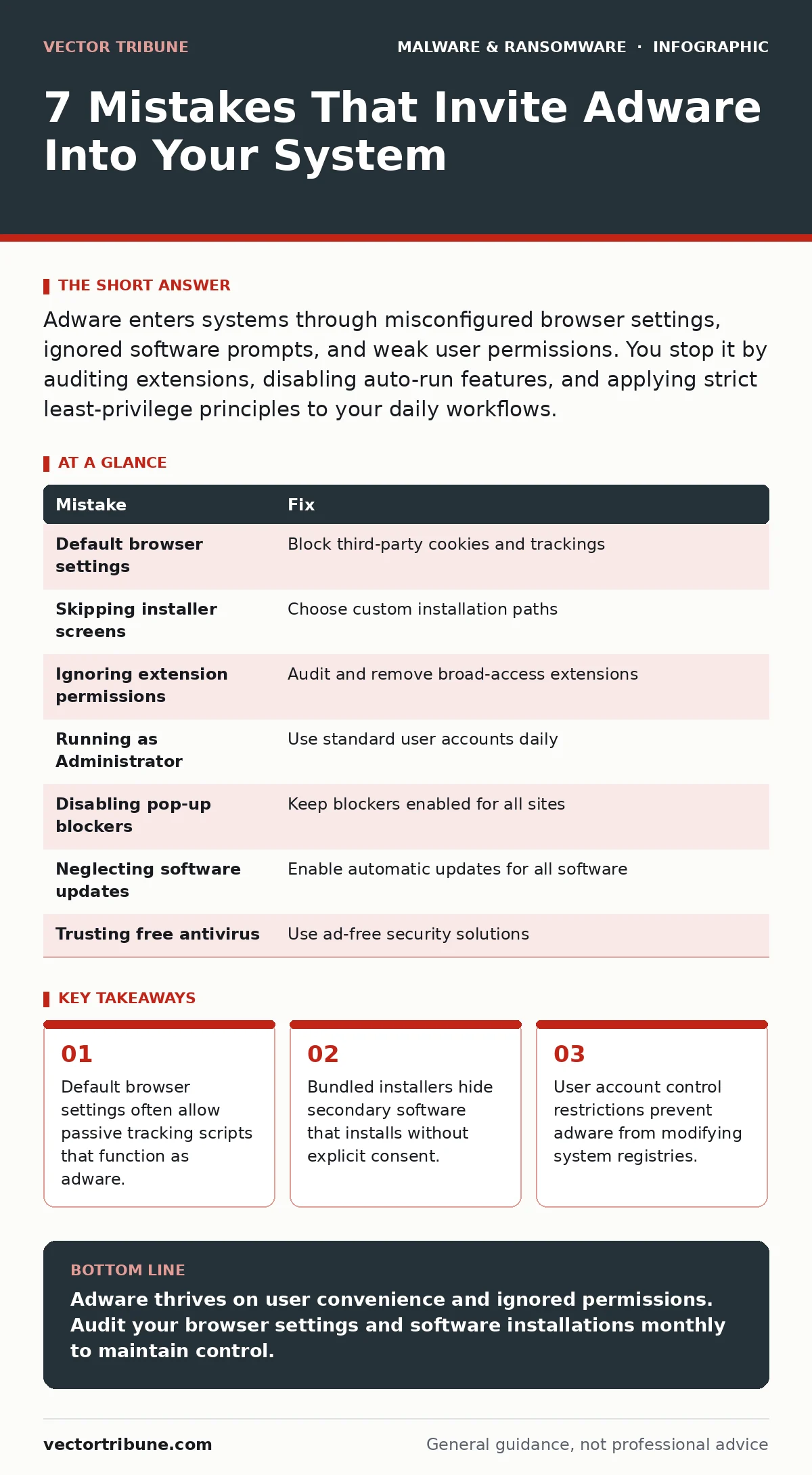
Adware enters systems through misconfigured browser settings, ignored software prompts, and weak user permissions. You stop it by auditing extensions, disabling auto-run features, and applying strict least-privilege principles to your daily workflows.
Mistake 1: Accepting Default Browser Privacy Settings
Most users leave browser privacy settings at their factory defaults. This configuration often permits third-party cookies and fingerprinting scripts to run silently. These scripts track your behavior across sites and serve targeted advertisements. The mechanism relies on the browser’s permissive nature rather than an exploit.
Why it hurts:
Passive tracking scripts consume bandwidth and CPU cycles. They build a profile of your habits without your knowledge. This data is sold to brokers who use it to serve intrusive ads. The adware does not need to execute code on your disk. It only needs the browser to render its content.
The fix:
Configure your browser to block third-party cookies by default. Enable Do Not Track headers. Use a browser extension that blocks known tracking domains. Review the list of installed extensions monthly. Remove any extension you do not recognize or use daily.
Mistake 2: Skipping Installer Screens
Software installers often include a secondary step that asks to install additional tools. This step is designed to look like a required part of the main application. Users click "Next" repeatedly to reach the final installation screen quickly. The secondary software is often adware or a potentially unwanted program.
Why it hurts:
The bundled software installs its own services and scheduled tasks. These components run in the background even if you never use the primary application. They inject ads into web pages or change your homepage. Removing the main application does not always remove the bundled adware.
The fix:
Choose the "Custom" or "Advanced" installation option every time. Read each screen carefully. Uncheck any box that mentions toolbars, search engines, or additional offers. If the installer does not offer a custom path, download the software from a different source.
Mistake 3: Ignoring Browser Extension Permissions
Extensions request access to "read and change all your data on websites." This permission allows the extension to see every page you visit. Many extensions use this access to inject advertisements into the content you view. The adware hides behind the trusted interface of the extension.
Why it hurts:
You cannot distinguish between a legitimate ad and an injected one. The adware can mimic system dialogs or security warnings. It may redirect you to malicious sites disguised as legitimate services. The extension has full control over the DOM structure of any page you load.
The fix:
Audit your extensions weekly. Remove any extension that requests broad data access unless you trust the developer completely. Prefer extensions from official stores with high download counts. Check the permissions listed in the extension details page.
Mistake 4: Running Applications as Administrator
Daily tasks do not require administrator privileges. Running your user account with administrative rights allows any software to modify system files. Adware exploits this by writing itself into startup folders or registry keys. It gains persistence because the system trusts the user context.
Why it hurts:
The adware can disable security tools or modify firewall rules. It installs drivers that operate at the kernel level. Standard user accounts cannot perform these actions. The adware becomes deeply embedded in the operating system. Removal requires a full system wipe in severe cases.
The fix:
Use a standard user account for daily activities. Create a separate administrator account for software installation and system configuration. Use the "Run as administrator" prompt only when necessary. This limits the damage any single application can cause.
Mistake 5: Disabling Pop-up Blockers
Pop-up blockers are enabled by default in modern browsers. Some users disable them to access specific websites or features. This action opens the door for malicious scripts to open new windows. These windows often contain ads or prompts to download more software.
Why it hurts:
The new windows can overlay legitimate content. They may display fake security alerts that prompt you to call a support number. The adware uses these windows to distribute further payloads. The browser’s security sandbox is bypassed by the user’s explicit permission.
The fix:
Keep pop-up blockers enabled at all times. If a site requires disabling the blocker, verify the site’s reputation first. Use a separate browser profile for untrusted sites. Configure the blocker to allow only specific domains you trust.
See also: Business Continuity Planning: The Mechanics of Operational Survival
Mistake 6: Neglecting Software Updates
Outdated software contains known vulnerabilities. Adware distributors do not need to exploit zero-day flaws. They use older, known methods that have been patched in recent versions. Your browser or operating system may have an open door for adware installation.
Why it hurts:
The adware exploits the vulnerability to bypass security controls. It installs itself before your security software can detect it. The infection spreads quickly across the network. Users who do not update remain vulnerable to the same attacks for years.
The fix:
Enable automatic updates for your operating system and browser. Check for updates manually once a month. Remove software that is no longer supported by the vendor. Use a tool that monitors for end-of-life software.
Mistake 7: Trusting Free Antivirus Solutions
Free antivirus programs often generate revenue by displaying advertisements. These ads can be misleading or intrusive. They may prompt you to purchase unnecessary upgrades. The software itself may contain tracking components that resemble adware.
Why it hurts:
You install security software to protect yourself from ads. The software then becomes a source of ads. This creates a confusing user experience. You may disable the software, leaving your system unprotected. The free model prioritizes ad revenue over user privacy.
The fix:
Use open-source security tools or enterprise-grade solutions that do not display ads. Evaluate the business model of any security software you install. Read the privacy policy to understand data collection practices. Consider using a hardware firewall for additional protection.
| Mistake | Fix |
|---|---|
| Default browser settings | Block third-party cookies and trackings |
| Skipping installer screens | Choose custom installation paths |
| Ignoring extension permissions | Audit and remove broad-access extensions |
| Running as Administrator | Use standard user accounts daily |
| Disabling pop-up blockers | Keep blockers enabled for all sites |
| Neglecting software updates | Enable automatic updates for all software |
| Trusting free antivirus | Use ad-free security solutions |
Key takeaways
- Default browser settings often allow passive tracking scripts that function as adware.
- Bundled installers hide secondary software that installs without explicit consent.
- User account control restrictions prevent adware from modifying system registries.
Adware thrives on user convenience and ignored permissions. Audit your browser settings and software installations monthly to maintain control.
Frequently asked questions
How do I know if I have adware?
Look for unexpected pop-ups, changed homepage settings, or new toolbars you did not install. Check your installed programs list for unfamiliar entries.
Is adware the same as malware?
Adware is a subset of malware. It focuses on generating advertising revenue rather than direct data theft or system destruction.
How this guide was produced: written by the Vector Tribune editorial team with AI assistance, checked against the public references listed below, and reviewed when the facts change. See our editorial policy or report an error.