
How Windows Security Settings Process Threats Behind the Scenes
See exactly how the operating system evaluates code, isolates processes, and blocks execution before a payload ever reaches your data.
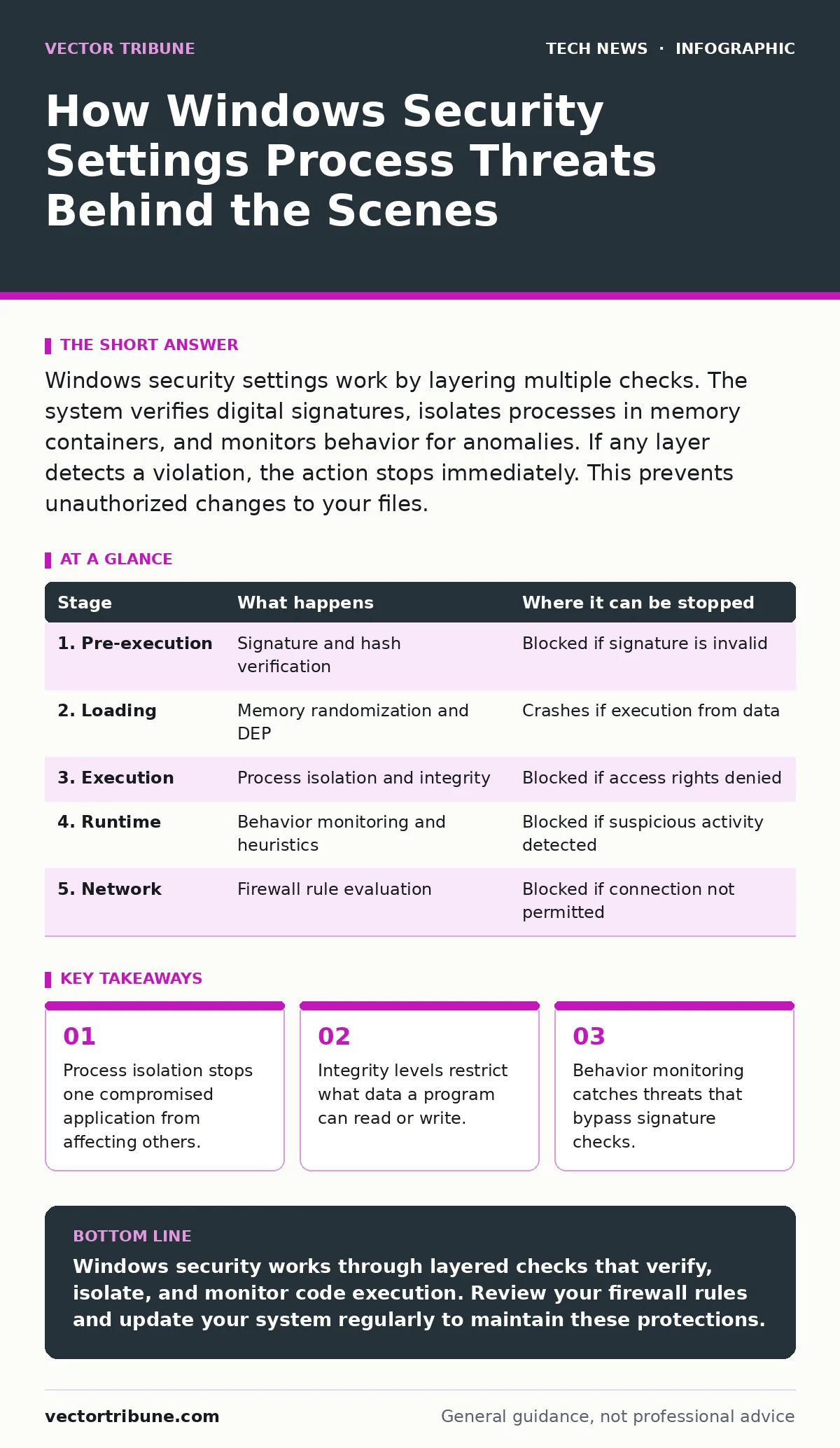
Windows security settings work by layering multiple checks. The system verifies digital signatures, isolates processes in memory containers, and monitors behavior for anomalies. If any layer detects a violation, the action stops immediately. This prevents unauthorized changes to your files.
The First Line: Code Signing Verification
When you double-click an executable file, the operating system does not immediately run it. It first checks the file’s digital signature. A digital signature is a cryptographic proof that the code has not been altered since the publisher signed it. This step happens before the file is even loaded into memory.
The system compares the signature against trusted root certificates stored in your certificate store. If the signature is missing, expired, or invalid, the system may block execution entirely. This depends on your specific security policy settings. Even if the code is harmless, an unsigned file triggers extra scrutiny.
This mechanism protects against tampering. If an attacker modifies a legitimate program to include malware, the signature breaks. The system detects this mismatch and refuses to run the code. You do not need to install additional software for this check. It is built into the core operating system.
Memory Protection and Address Randomization
Once the code passes the signature check, the system loads it into memory. It uses Address Space Layout Randomization to place the code at a random memory address. This technique makes it difficult for attackers to predict where specific functions reside.
Without randomization, an attacker could guess the memory address of a vulnerability and inject malicious code. Randomization forces them to guess correctly each time. The probability of success drops significantly. This does not stop the attack but makes it much harder to execute reliably.
The system also enforces Data Execution Prevention. This setting marks certain areas of memory as non-executable. If a program tries to run code from a data section, the system stops it. Many exploits rely on injecting code into data buffers. This feature blocks that common technique.
Process Isolation and Integrity Levels
Running programs operate within isolated containers called processes. One process cannot directly access the memory of another. This isolation prevents a crash or compromise in one application from affecting the entire system.
Windows assigns an integrity level to each process. This level determines what resources the process can access. A low-integrity process cannot write to files owned by a high-integrity process. This stops a compromised web browser from modifying system settings.
Suppose a malicious script runs in your browser. Even if it escapes the browser sandbox, it remains at a low integrity level. It cannot install new software or change system configurations. The operating system enforces these boundaries strictly. This containment limits the damage of any successful breach.
Real-Time Behavior Monitoring
Static checks like signatures and integrity levels are not enough. Attackers create new malware that has no known signature. The system uses real-time behavior monitoring to catch these threats. It watches what programs do, not just what they are.
The monitoring service scans files as they are created or modified. It looks for suspicious patterns such as rapid file creation or attempts to disable security services. If a program behaves like malware, the system blocks it. This happens in the background without slowing down your work.
This approach catches zero-day threats. These are attacks that have never been seen before. Since there is no signature to match, behavior analysis is the only defense. The system learns from global threat intelligence to improve its detection. You benefit from this collective knowledge automatically.
Network Filtering and Firewall Rules
Security extends beyond the local machine. The operating system includes a firewall that controls incoming and outgoing network connections. It uses rules to decide which traffic is allowed. By default, it blocks all incoming connections that are not explicitly permitted.
When an application tries to connect to the internet, the firewall checks its identity. It verifies the program’s path and digital signature. If the application is unknown, the system prompts you for permission. You should only allow connections from trusted sources.
Outbound filtering is often overlooked. Many malware variants call home to send stolen data. The firewall can block these connections if configured correctly. This stops data exfiltration even if the malware is already running. You must review these settings regularly to ensure they remain effective.
Stages of Windows Security Processing
Understanding the sequence helps you identify where defenses might fail. Each stage adds a layer of protection. If one layer is bypassed, the next layer attempts to stop the threat.
| Stage | What happens | Where it can be stopped |
|---|---|---|
| 1. Pre-execution | Signature and hash verification | Blocked if signature is invalid |
| 2. Loading | Memory randomization and DEP | Crashes if execution from data |
| 3. Execution | Process isolation and integrity | Blocked if access rights denied |
| 4. Runtime | Behavior monitoring and heuristics | Blocked if suspicious activity detected |
| 5. Network | Firewall rule evaluation | Blocked if connection not permitted |
Limits of Automated Protection
No security system is perfect. These settings protect against known patterns and common techniques. They cannot stop every possible attack. Social engineering remains a major risk. If you voluntarily give an attacker access, the system cannot stop them.
Complex attacks may bypass initial checks. An attacker might use a legitimate tool for malicious purposes. This is known as living off the land. The system may not flag these actions because the tool itself is trusted. You must monitor for unusual usage of standard tools.
Regular updates are necessary. New vulnerabilities are discovered constantly. Microsoft releases patches to fix these holes. Without updates, your defenses become outdated. You must apply these patches promptly to maintain protection.
Configuring Your Defense Layers
You can adjust these settings to fit your needs. Higher security may cause false positives. This happens when legitimate software is blocked. You must balance security with usability.
Review your firewall rules regularly. Remove rules for applications you no longer use. Check your antivirus exclusions. Ensure no critical folders are excluded from scanning. These exclusions can become entry points for attackers.
Test your configurations periodically. Use sandbox environments to simulate attacks. This helps you verify that your settings work as intended. You can identify gaps before they are exploited. Proactive testing strengthens your overall security posture.
Key takeaways
- Process isolation stops one compromised application from affecting others.
- Integrity levels restrict what data a program can read or write.
- Behavior monitoring catches threats that bypass signature checks.
Windows security works through layered checks that verify, isolate, and monitor code execution. Review your firewall rules and update your system regularly to maintain these protections.
Frequently asked questions
Why does Windows block unsigned software?
Unsigned software lacks a verified publisher. The system blocks it to prevent running tampered or malicious code that cannot be traced to a known source.
Can I disable behavior monitoring for speed?
You can, but it reduces protection against new threats. The performance impact is usually minimal on modern hardware. Disabling it leaves you vulnerable to zero-day attacks.
What is process isolation?
It is a technique that keeps applications separate in memory. If one app crashes or is compromised, it cannot affect others or the operating system core.
How do I know if my firewall is working?
Check the security dashboard for status indicators. Ensure it is active and review the list of allowed applications to confirm only trusted programs have access.
How this guide was produced: written by the Vector Tribune editorial team with AI assistance, checked against the public references listed below, and reviewed when the facts change. See our editorial policy or report an error.